Once you are logged in to Globus, the File Manager interface is self-explanatory and you will probably understand how to use it without further help.
If you need more detail, the Globus website provides an excellent Getting Started guide. The next few sections explain how to find ACCESS resources within Globus, how to upload and download files, and how to set up your local system for larger transfers that run in the background.
Find ACCESS resources
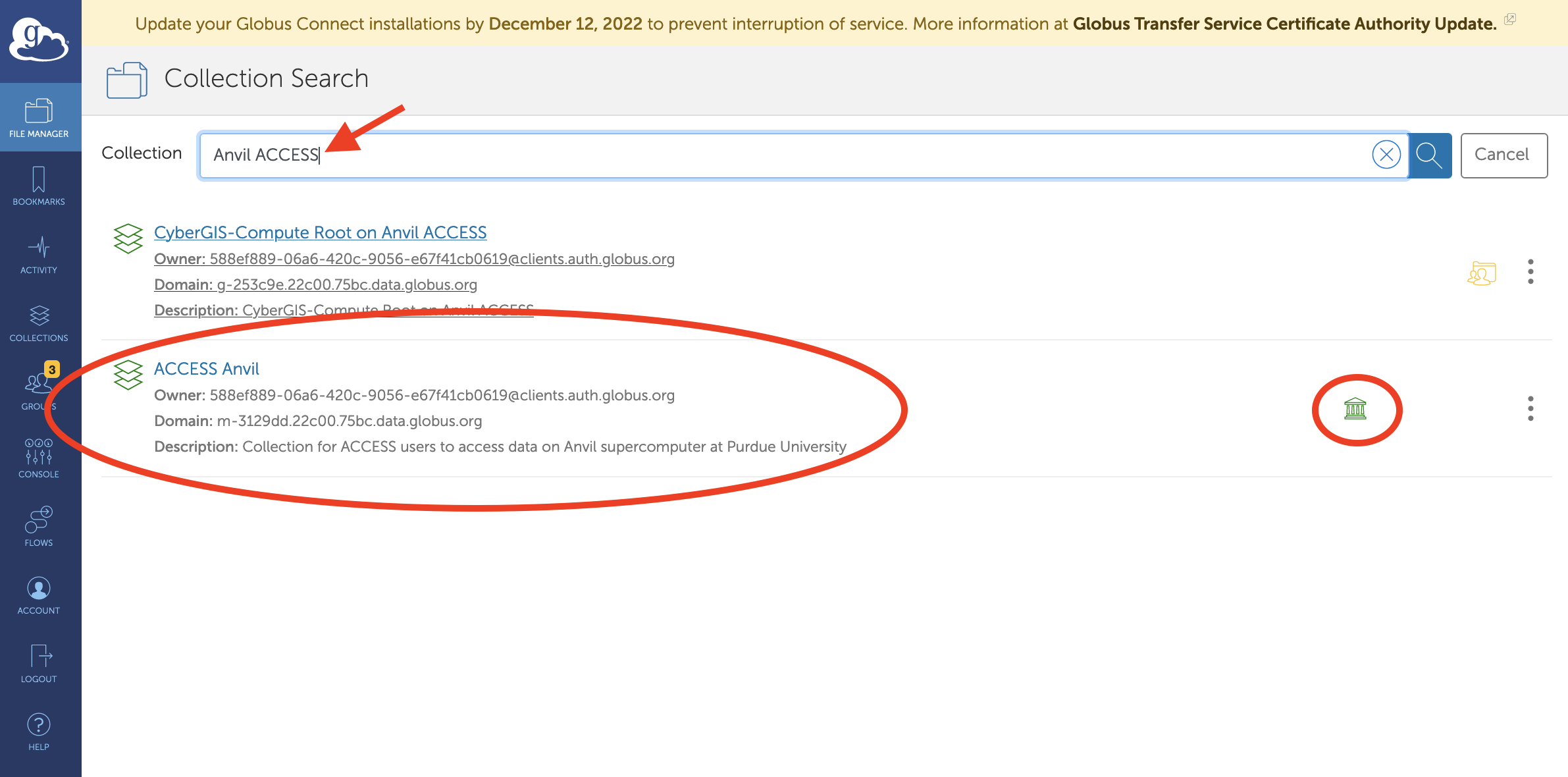
Globus lets you move files to and from collections. Almost all of the ACCESS resources have Globus collections for the storage available to authorized researchers. To find the collection for an ACCESS resource, click the Collection Search box at the top of the File Manager, type the resource’s name and the word “ACCESS,” and the resource’s ACCESS collections will appear. Make sure the collection you pick has the green “Greek columns” icon that signifies the collection is owned by a Globus-supporting organization. If the resource you are looking for is especially new or is no longer online and you can’t find it in the list, use the ACCESS Help Desk to inquire about its availability.
Find your local computers
You can easily create a Globus collection on your own computer so you can transfer lots of files or very large files to or from your computer in the background while you do other work. To do this, download and install the Globus Connect Personal software (available for Windows, Mac, and Linux). Globus Connect Personal runs as a background task. While it is running, your system will be available in Globus’s File Manager (but only to you) and you will be able to start transfers between it and any other Globus collection, including ACCESS resources.
You can start and stop Globus Connect Personal whenever you need to, even shutting your system down, hibernating, and moving between networks. Globus will automatically find your system and continue any active transfers whenever you are connected to a network and have the tool running. It does not require administrative privileges.
Find other research systems
Many colleges, universities, research institutions, and laboratories offer Globus collections for their systems. To find a collection provided by an organization, try typing the name of the organization in the Collection Search box. To confirm the organization that provides a collection, look for the green “Greek columns” icon and check the “Owner” field. You’ll need to be authorized by the organization to access its collections.
Any Linux-based server system can host Globus collections by installing Globus Connect Server. Once installed, anyone with a local account on the server can move and share files between it and other Globus collections. Documentation for Globus Connect Server is available on the Globus website.
Upload and download files
Nearly all ACCESS resources allow you to upload or download files with your web browser. When viewing a folder on an ACCESS resource in the File Manager, the Upload icon will be active.

Click the Upload button and your browser will open a file selection dialog. You may select multiple files, but not folders. Globus will upload the files to the folder you are viewing.

You can also download files. Select a single file by clicking its name (download is currently only available for single files). The Download button will activate if available on this ACCESS resource.


If the Upload and Download buttons do not activate as described, the ACCESS resource you are using hasn’t been updated to the latest Globus software. You can use Globus Connect Personal to transfer files to/from this resource or request an upgrade by submitting a support ticket.
Data integrity
All Globus transfers between two servers automatically use advanced checksums to verify file integrity during and after each transfer. If an integrity check fails, Globus will automatically re-transfer the file. You can disable this feature using the “Transfer & Sync Options” interface (Figure 6), but it is enabled by default. Note: Browser uploads and downloads do not include integrity checks.

Data transfer performance
Any given data transfer can only perform as well as the slowest component involved — a slow network link, the disk drive on your laptop, or an overloaded file system on a supercomputer. ACCESS resources are shared, so your transfer will share bandwidth with other users, applications, and systems.
Under ideal conditions, a transfer of 1 terabyte will take approximately three hours over a 1 Gbps connection, and 20 minutes over a 10 Gbps connection. Connections between most ACCESS resources are currently 10 Gbps, but these connections and storage systems are shared with other researchers. University campus connections are typically 1 Gbps or 10 Gbps. Home network connections are measured in Mbps.
If your data transfer performance is significantly less than expected, check the performance of the network to which your laptop or desktop is connected. To discuss data transfer performance with experts, open a support ticket.